Building Serverless Rclone Data Transfers to Google Cloud Storage

Google Cloud Storage (GCS) is the common storage layer for your apps on Google Cloud. But, data gravity is real, the world of storage is large and diverse, and at some point you will need to integrate with SFTP, HTTP, S3, WebDAV, Azure Blob, and more. Google’s Storage Transfer Service (STS) supports the most common services, but when it doesn’t, the open-source project rclone can often fill the gap.
In this post you will learn how to use the rclone open-source data transfer engine to build an automated, zero-maintenance transfer service that transfers data between external services and Google Cloud Storage. Recipes are provided for SFTP server to GCS. Swapping in other backends shouldn’t be a problem once you understand the solution building blocks, and in fact at the end is a bonus recipe for HTTP.
Data transfer solutions with Google Cloud Storage
There are endless ways to transfer data into and out of GCS, but my two favorites are the Storage Transfer Service and rclone:
- Storage Transfer Service: Use this fully managed solution when using one of these sources: Amazon S3, generic S3-compatible object stores, Azure Blob Storage, on-premises file systems (via dedicated STS agents), and GCS bucket synchronization. STS is designed for transfers at scale and parallelizes the discovery and transfer phases, has validation checks, is managed with IAM permissions, and has no service costs for most transfers.
- rclone: Use rclone when transferring with any storage service not supported by STS such as (S)FTP servers, WebDAV endpoints, SMB/CIFS shares, and file sharing services like OneDrive, Box, Dropbox, and Google Drive. Rclone also supports GCS as the source or destination, so if you need to transfer data out of GCS to AWS S3 or Azure Blob it can also do the job.
TLDR; If STS handles your use case, use it. When it doesn’t, rclone to the rescue!
Serverless rclone data transfers: Cloud Run jobs vs Batch
While you can provision a VM, install rclone on it, and configure a cronjob for recurring transfers, there are much cleaner, cheaper, and more secure ways to do it using ephemeral compute and a job-oriented approach. I present two solutions, one using Cloud Run jobs for ultimate simplicity, and another using Batch when more control over compute resources is needed. While the execution engines are different, both designs use the official rclone container image, Secret Manager for protecting SSH keys and Cloud Scheduler for triggering transfer updates.
| Cloud Run jobs | Batch | |
|---|---|---|
| When to choose | Ideal for smaller transfers where transfer speeds up to ~30 MiB/s are fast enough. | Ideal for larger transfers where transfer speeds of 500 MiB/s or more are needed. |
| Why it shines | Extremely fast startup times, fully serverless, simple design and metrics and logging across executions. | Flexibility to define VM details fitting a broader set of requirements. |
| Why not | Throughput is too low. | Slower start-up times, solution requires more services, adding complexity. Metrics and monitoring views are per execution, to view across executions requires building own dashboards and log filter views. |
Cloud Run jobs
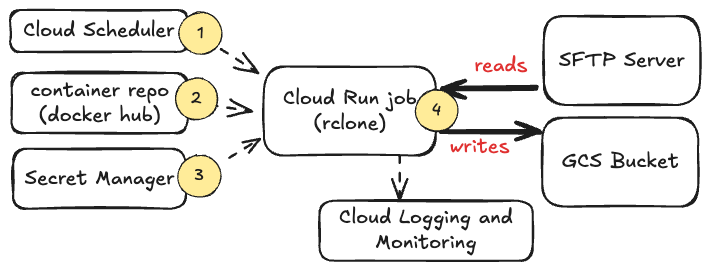
The Cloud Run approach is quite straightforward:
- Cloud Scheduler triggers Cloud Run job on a cron based schedule.
- Cloud Run job pulls
rclonecontainer from Docker hub. - The
rclone.confand SSH key are pulled from Secret Manager and mounted into container. - The
rcloneprocess runs, reading and writing data. Logs and metrics (CPU, RAM, network bytes, etc) are saved to the Cloud Run job instance in Cloud Monitoring and Logging.
Wondering about that low 30 MiB/s limit? It comes from Cloud Run’s shared network bandwidth limit of 600 Mbps (ingress+egress). While you can use Direct VPC to achieve greater throughput, the NAT processing charge for inbound data adds up. Better to use a different service to avoid it, or shard your transfers across more jobs to stay within it.
Batch
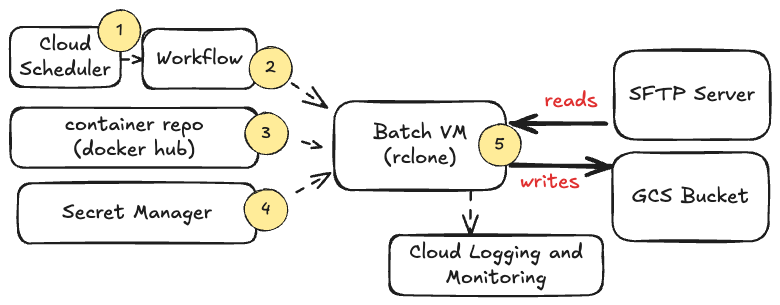
Using Batch has these steps:
- Cloud Scheduler triggers a Workflow using a cron based schedule.
- Workflow creates a Batch job that includes the
rcloneand VM worker configuration. - Batch pulls
rclonecontainer from Docker hub. - The SSH key is pulled from Secret Manager and saved to the VM.
- The
rcloneprocess runs on the exact VM shape requested, reading and writing data. Logs and metrics (cpu, ram, network bytes, etc) are saved to the VM instance in Cloud Monitoring and Logging.
With Workflow and Batch you have more control over the transfer resources and can build more sophisticated workflows.
Recipes: Cloud Run Jobs & Batch
Let’s make this real with recipes for each of these options!
Recipe 1: Cloud Run jobs
Goal: Use Cloud Run jobs to copy files from a remote SFTP server to a GCS bucket every two hours using a lightweight, zero-maintenance Cloud Run job. These steps assume you are authenticated from a command prompt with gcloud and a default project has been selected. Using Cloud Shell is an option.
(1) Set Up Environment Variables & Enable APIs
Define your operational variables and enable the required Google Cloud APIs:
export PROJECT_ID=$(gcloud config get-value project)
export REGION="europe-west3"
export BUCKET_NAME="destination-gcs-bucketname"
export JOB_NAME="sftp-to-gcs"

# Enable required APIs for Cloud Run execution
gcloud services enable \
    run.googleapis.com \
    cloudscheduler.googleapis.com \
    secretmanager.googleapis.com \
    iam.googleapis.com \
    compute.googleapis.com
(2) Create Least-Privilege Service Accounts
Following least-privilege principles, create two dedicated service accounts: one for the Cloud Run job worker and one for the Cloud Scheduler cron trigger:
# 1. Create Service Account for the Cloud Run job
gcloud iam service-accounts create sftp-run-sa \
    --display-name="Service Account for SFTP rclone Cloud Run job"
export RUN_SA_EMAIL="sftp-run-sa@${PROJECT_ID}.iam.gserviceaccount.com"

# 2. Create Service Account for Cloud Scheduler
gcloud iam service-accounts create sftp-run-scheduler-sa \
    --display-name="Service Account for Cloud Scheduler to invoke Cloud Run"
export SCHEDULER_RUN_SA_EMAIL="sftp-run-scheduler-sa@${PROJECT_ID}.iam.gserviceaccount.com"
(3) Configure GCS Bucket Permissions
Create your destination GCS bucket and grant the Cloud Run job service account object admin permissions:
# Create the target GCS bucket if needed (Optional)
gcloud storage buckets create gs://${BUCKET_NAME} \
    --location=${REGION} \
    --uniform-bucket-level-access

# Grant the Cloud Run SA permission to write to the GCS bucket
gcloud storage buckets add-iam-policy-binding gs://${BUCKET_NAME} \
    --member="serviceAccount:${RUN_SA_EMAIL}" \
    --role="roles/storage.objectAdmin"
(4) Create Secrets in Secret Manager
In Cloud Run jobs, configuration files and SSH keys are uploaded to Secret Manager and mounted directly as read-only volumes inside the container filesystem at runtime.
Take the SSH private key file provided by the SFTP server administrator and save it to a local SSH private key file named sftp_user_key. Next, upload this file as a secret:
# Create the SSH key (Skip if already created in Batch recipe)
gcloud secrets create sftp-private-key \
    --data-file="sftp_user_key" \
    --replication-policy="automatic"
Next, generate a temporary rclone.conf file for your environment (update host and user as applicable) and upload as a secret:
cat <<EOF > rclone.conf
[gcs-ftp]
type = sftp
host = sftp.example.com
user = gcs-ftp
key_file = /secrets/ssh/sftp_user_key
shell_type = cmd
md5sum_command = none
sha1sum_command = none

[gcs-bucket]
type = google cloud storage
anonymous = false
bucket_policy_only = true
EOF

# Upload rclone.conf to Secret Manager and remove local copy
gcloud secrets create rclone-config \
    --data-file="rclone.conf" \
    --replication-policy="automatic"
rm rclone.conf
Grant the Cloud Run job worker service account permission to read both secrets:
gcloud secrets add-iam-policy-binding sftp-private-key \
    --member="serviceAccount:${RUN_SA_EMAIL}" \
    --role="roles/secretmanager.secretAccessor"

gcloud secrets add-iam-policy-binding rclone-config \
    --member="serviceAccount:${RUN_SA_EMAIL}" \
    --role="roles/secretmanager.secretAccessor"
(5) Deploy the Cloud Run job
Next, we will create the Cloud Run job. First update the SOURCE_PATH and DESTINATION_PATH for your situation:
# Set source and destination paths (omit leading slashes unless required by your setup)
SOURCE_PATH="source/path/here"
DESTINATION_PATH="destination/path/here"
Next, we’ll create the job itself. The compute resources set here (--cpu and --memory) were enough to reach the 30 MiB/s networking limit when transferring 1 GiB files. If your transfer is limited by file processing and not throughput, adding resources could help. For jobs that are expected to take longer than an hour, increase the --task-timeout accordingly:
# Deploy the managed Cloud Run job container
gcloud run jobs create ${JOB_NAME} \
    --image="docker.io/rclone/rclone:latest" \
    --region=${REGION} \
    --service-account=${RUN_SA_EMAIL} \
    --cpu=2 \
    --memory=1Gi \
    --tasks=1 \
    --max-retries=2 \
    --task-timeout=3600s \
    --set-secrets="/secrets/config/rclone.conf=rclone-config:latest,/secrets/ssh/sftp_user_key=sftp-private-key:latest" \
    --args="copy,gcs-ftp:${SOURCE_PATH},gcs-bucket:${BUCKET_NAME}/${DESTINATION_PATH},--config=/secrets/config/rclone.conf,--verbose,--stats=60s,--stats-one-line-date,--stats-file-name-length=0,--transfers=8,--checkers=8,--log-file=/dev/stdout"
(6) Test Job Execution & Verify Logs
Trigger an immediate execution:
# Execute the job manually
gcloud run jobs execute ${JOB_NAME} \
    --region=${REGION}
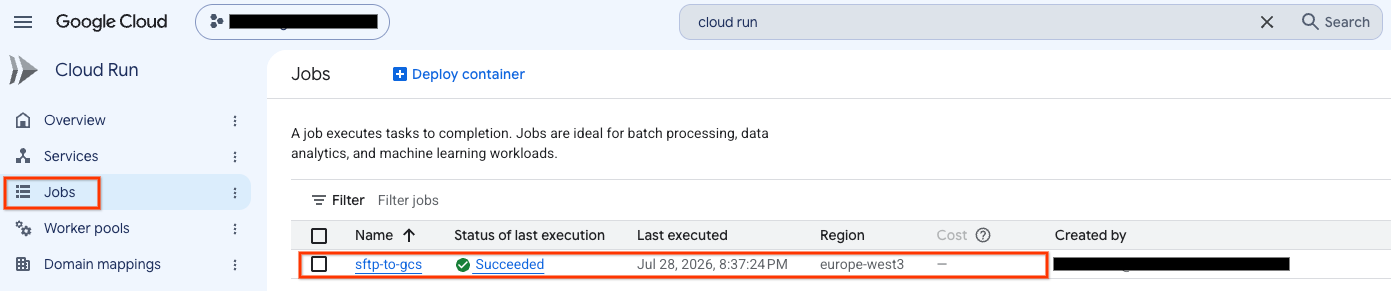
In Cloud Console navigate to the Cloud Run -> Jobs interface.
View the job you created:
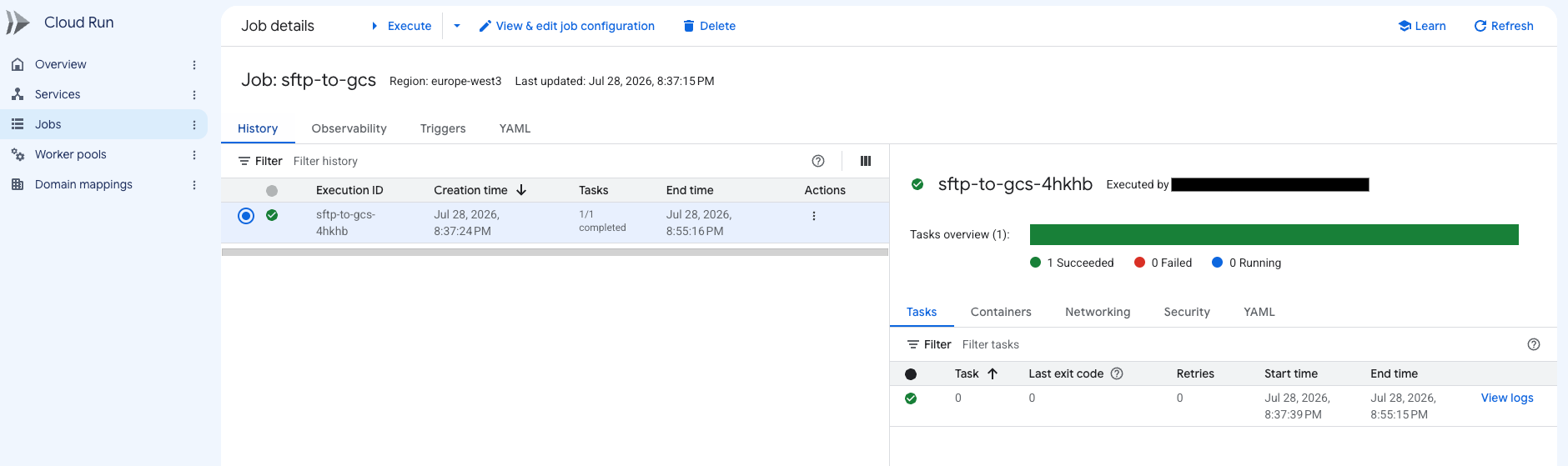
View the specific execution details:
View the resource usage including CPU and network for any bottlenecks:
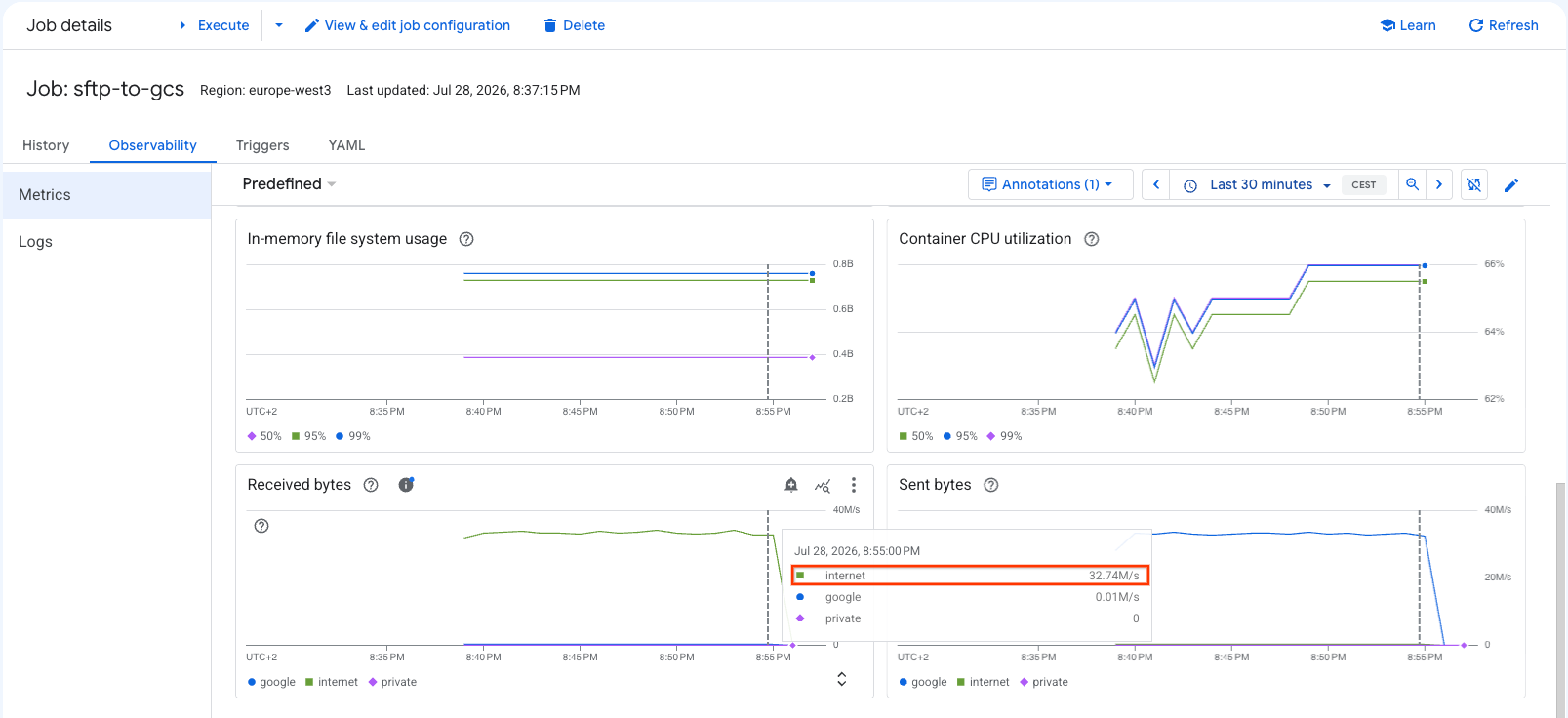
View the logging including each file copied by rclone:
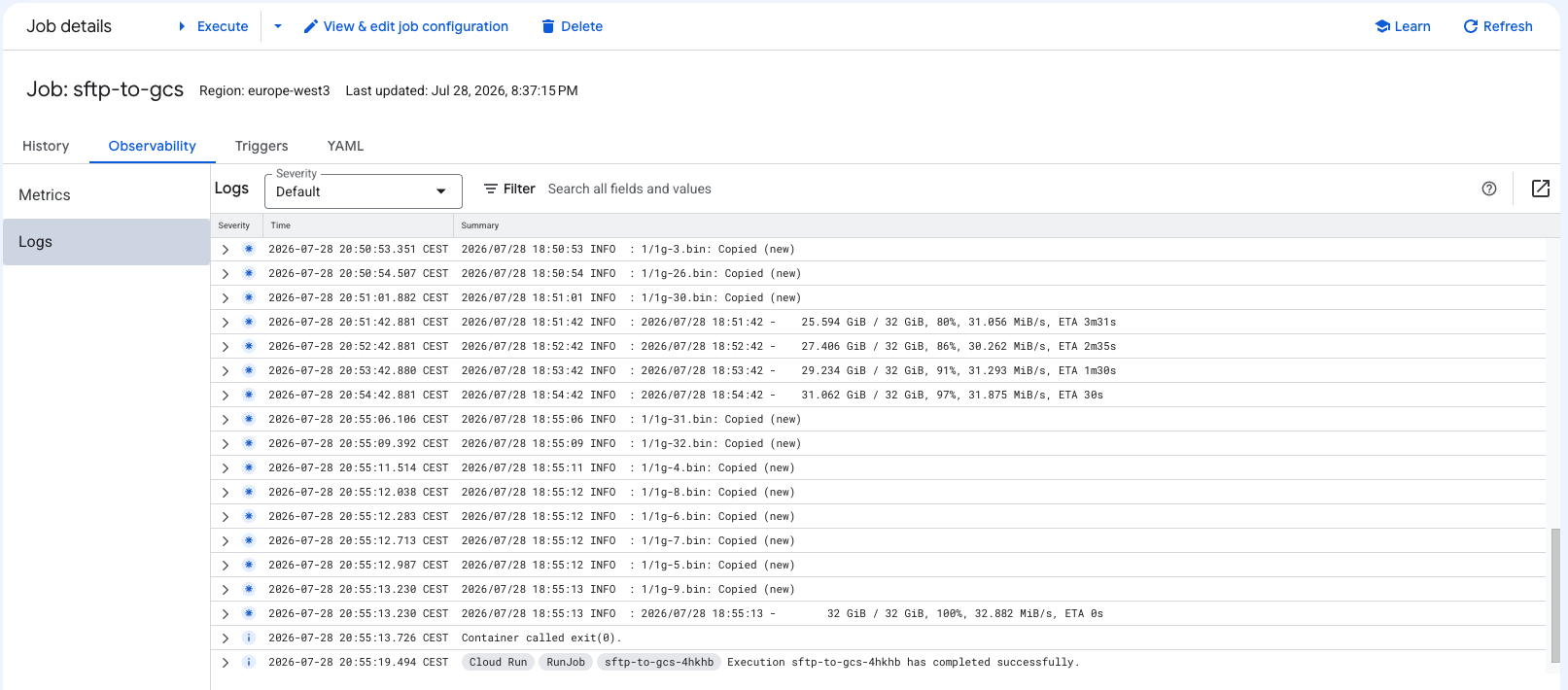
(7) Scheduling recurring transfers with Cloud Scheduler
To execute every two hours, configure Cloud Scheduler to trigger your job endpoint, and trigger it as a test:
# Allow Cloud Scheduler to invoke the Cloud Run job
gcloud run jobs add-iam-policy-binding ${JOB_NAME} \
    --region=${REGION} \
    --member="serviceAccount:${SCHEDULER_RUN_SA_EMAIL}" \
    --role="roles/run.invoker"

# Create the scheduler job
gcloud scheduler jobs create http sftp-to-gcs-run-schedule \
    --location=${REGION} \
    --schedule="0 */2 * * *" \
    --uri="https://run.googleapis.com/v2/projects/${PROJECT_ID}/locations/${REGION}/jobs/${JOB_NAME}:run" \
    --http-method=POST \
    --oauth-service-account-email=${SCHEDULER_RUN_SA_EMAIL}

# Run the schedule once manually to verify it works
gcloud scheduler jobs run sftp-to-gcs-run-schedule \
    --location=${REGION}
If you check Cloud Scheduler you should see a successful invocation, and if you view the Cloud Run job page you can view the details of the rclone transfer job execution.
🥳 Congrats, you have now successfully used rclone to transfer data from a remote SFTP server into GCS without a server to manage, and scheduled it to update every two hours!
Recipe 2: Batch
Goal: Use Batch jobs to copy files from a remote SFTP server to a GCS bucket every two hours using a lightweight, zero-maintenance Batch job. These steps assume you are authenticated from a command prompt with gcloud and a default project has been selected. Using Cloud Shell is an option.
(1) Set Up Environment Variables & Enable APIs
Define your operational variables and enable the required Google Cloud APIs:
export PROJECT_ID=$(gcloud config get-value project)
export PROJECT_NUMBER=$(gcloud projects describe ${PROJECT_ID} --format="value(projectNumber)")
export REGION="europe-west3"
export BUCKET_NAME="destination-gcs-bucketname"
export WORKFLOW_NAME="sftp-to-gcs-workflow"

gcloud services enable \
    workflows.googleapis.com \
    workflowexecutions.googleapis.com \
    batch.googleapis.com \
    compute.googleapis.com \
    cloudscheduler.googleapis.com \
    secretmanager.googleapis.com \
    logging.googleapis.com \
    iam.googleapis.com

# Create a default network if it doesn't already exist
gcloud compute networks describe default >/dev/null 2>&1 || gcloud compute networks create default --subnet-mode=auto
(2) Create Least-Privilege Service Accounts & IAM Bindings
Following least-privilege principles, create three dedicated service accounts:
# 1. Create Service Account for the Batch worker VMs
gcloud iam service-accounts create sftp-batch-sa \
    --display-name="Service Account for SFTP rclone Batch worker"
export BATCH_SA_EMAIL="sftp-batch-sa@${PROJECT_ID}.iam.gserviceaccount.com"

# 2. Create Service Account for Workflow orchestrator
gcloud iam service-accounts create sftp-workflows-sa \
    --display-name="Service Account for Workflow to submit Batch jobs"
export WORKFLOWS_SA_EMAIL="sftp-workflows-sa@${PROJECT_ID}.iam.gserviceaccount.com"

# 3. Create Service Account for Cloud Scheduler trigger
gcloud iam service-accounts create sftp-batch-scheduler-sa \
    --display-name="Service Account for Cloud Scheduler to invoke Workflows"
export BATCH_SCHEDULER_SA_EMAIL="sftp-batch-scheduler-sa@${PROJECT_ID}.iam.gserviceaccount.com"
Grant the necessary IAM roles for orchestration, token creation, and workflow execution:
# Allow Workflows to create Batch jobs and act as the Batch worker SA
gcloud projects add-iam-policy-binding ${PROJECT_ID} \
    --member="serviceAccount:${WORKFLOWS_SA_EMAIL}" \
    --role="roles/batch.jobsEditor"

gcloud iam service-accounts add-iam-policy-binding ${BATCH_SA_EMAIL} \
    --member="serviceAccount:${WORKFLOWS_SA_EMAIL}" \
    --role="roles/iam.serviceAccountUser"

# Allow Cloud Scheduler service agent to mint tokens on behalf of BATCH_SCHEDULER_SA
gcloud iam service-accounts add-iam-policy-binding ${BATCH_SCHEDULER_SA_EMAIL} \
    --member="serviceAccount:service-${PROJECT_NUMBER}@gcp-sa-cloudscheduler.iam.gserviceaccount.com" \
    --role="roles/iam.serviceAccountTokenCreator"

# Allow BATCH_SCHEDULER_SA to invoke Workflow
gcloud projects add-iam-policy-binding ${PROJECT_ID} \
    --member="serviceAccount:${BATCH_SCHEDULER_SA_EMAIL}" \
    --role="roles/workflows.invoker"
(3) Configure GCS Bucket & Batch VM Permissions
Create the GCS bucket if needed, and then grant the Batch SA access to manage objects in it. Next, grant the Batch SA permission to report container health back to the Batch control plane and stream logs to Cloud Logging:
# Create the target GCS bucket if needed (Optional)
gcloud storage buckets create gs://${BUCKET_NAME} \
    --location=${REGION} \
    --uniform-bucket-level-access

# Grant the Batch worker SA permission to manage objects in the target GCS bucket
gcloud storage buckets add-iam-policy-binding gs://${BUCKET_NAME} \
    --member="serviceAccount:${BATCH_SA_EMAIL}" \
    --role="roles/storage.objectAdmin"

# Grant the Batch worker SA permission to report agent state back to the Batch control plane
gcloud projects add-iam-policy-binding ${PROJECT_ID} \
    --member="serviceAccount:${BATCH_SA_EMAIL}" \
    --role="roles/batch.agentReporter"

# Grant the Batch worker SA permission to write logs to Cloud Logging
gcloud projects add-iam-policy-binding ${PROJECT_ID} \
    --member="serviceAccount:${BATCH_SA_EMAIL}" \
    --role="roles/logging.logWriter"
(4) Create Secrets in Secret Manager
With Batch, we will have the VM SA pull in the SSH private key at runtime. Take the SSH private key file provided by the SFTP server administrator and save it to a local SSH private key file named sftp_user_key. Next, upload this file as a secret, and then grant the Batch SA permission to read it:
# Create the SSH key (Skip if already created in Cloud Run jobs recipe)
gcloud secrets create sftp-private-key \
    --data-file="sftp_user_key" \
    --replication-policy="automatic"

# Grant the Batch worker SA permission to access the SSH private key
gcloud secrets add-iam-policy-binding sftp-private-key \
    --member="serviceAccount:${BATCH_SA_EMAIL}" \
    --role="roles/secretmanager.secretAccessor"
(5) Deploy the Workflow Orchestrator
Workflow provides a workflow you define in a YAML file. It is a quite expressive format that can be intimidating at first glance, but if you focus on a section at a time it gets easier.
- The
init_configstep includes variable assignments. - The
submit_batch_transferstep creates the Batch job. Let’s step through the main parts:- The first runnable is
stage-config-and-keys, which puts the rclone config and SSH keys in place - The second runnable is
run-rclone-syncand it defines the container details, similar to the Cloud Run recipe. - You will also see
computeResourcefor CPU and Memory, and amachineTypefor the VM shape to use. Batch uses cgroups to limit the task within thecomputeResourcelimits so it is important to align these with themachineTypeor you will potentially leave VM resources idle. For example if you wanted to use a 4 vCPU VM with 8 GiB of RAM you should set thecpuMillito4000andmemoryMibto8192. In my test environment transferring 32 x 1 GiB files I observed 2 vCPU at 300 MiB/s, 4 vCPU at 470 MiB/s, and 8 vCPU at 560 MiB/s. Experiment with different configurations to find the best fit for your needs. - For jobs that are expected to take longer than an hour, increase the
maxRunDurationaccordingly.
- The first runnable is
First, set variables for your specific environment:
# Set SFTP host, SFTP user, and source and destination paths (omit leading slashes unless required by your setup)
SFTP_HOST="sftp.example.com"
SFTP_USER="gcs-ftp"
SOURCE_PATH="source/path/here"
DESTINATION_PATH="destination/path/here"
Next, create the Workflow YAML file:
cat <<EOF > sftp-transfer-workflow.yaml
main:
  steps:
    - init_config:
        assign:
          - project_id: \${sys.get_env("GOOGLE_CLOUD_PROJECT_ID")}
          - region: "${REGION}"
          - unique_job_id: \${"sftp-sync-" + uuid.generate()}
          - source_path: "${SOURCE_PATH}"
          - destination_path: "${DESTINATION_PATH}"
          - rclone_config_content: |
              [gcs-ftp]
              type = sftp
              host = ${SFTP_HOST}
              user = ${SFTP_USER}
              key_file = /secrets/ssh/sftp_user_key
              shell_type = cmd
              md5sum_command = none
              sha1sum_command = none

              [gcs-bucket]
              type = google cloud storage
              anonymous = false
              bucket_policy_only = true
    - submit_batch_transfer:
        call: googleapis.batch.v1.projects.locations.jobs.create
        args:
          parent: \${"projects/" + project_id + "/locations/" + region}
          jobId: \${unique_job_id}
          body:
            taskGroups:
              - taskCount: "1"
                parallelism: "1"
                taskSpec:
                  runnables:
                    # Runnable 1: Stage our inline YAML config and fetch the secret SSH key to disk
                    - displayName: "stage-config-and-keys"
                      script:
                        text: |
                          mkdir -p /mnt/disks/secrets/ssh
                          echo "\${RCLONE_CONFIG_ENV}" > /mnt/disks/secrets/rclone.conf
                          unset CLOUDSDK_PYTHON
                          gcloud secrets versions access latest --secret=sftp-private-key --out-file=/mnt/disks/secrets/ssh/sftp_user_key
                          chmod 600 /mnt/disks/secrets/ssh/sftp_user_key
                          chmod 644 /mnt/disks/secrets/rclone.conf
                    # Runnable 2: Execute rclone transfer with clean standard output log redirection
                    - displayName: "run-rclone-sync"
                      container:
                        imageUri: "docker.io/rclone/rclone:latest"
                        commands:
                          - "copy"
                          - "gcs-ftp:${SOURCE_PATH}"
                          - "gcs-bucket:${BUCKET_NAME}/${DESTINATION_PATH}"
                          - "--config=/secrets/rclone.conf"
                          - "--verbose"
                          - "--stats=60s"
                          - "--stats-one-line-date"
                          - "--stats-file-name-length=0"
                          - "--transfers=16"
                          - "--checkers=8"
                          - "--log-file=/dev/stdout"
                        volumes:
                          - "/mnt/disks/secrets:/secrets"
                  environment:
                    variables:
                      RCLONE_CONFIG_ENV: \${rclone_config_content}
                  computeResource:
                    cpuMilli: "2000"
                    memoryMib: "4096"
                  maxRetryCount: 2
                  maxRunDuration: "3600s"
            allocationPolicy:
              serviceAccount:
                email: \${"sftp-batch-sa@" + project_id + ".iam.gserviceaccount.com"}
              instances:
                - policy:
                    machineType: "n4-highcpu-2"
            logsPolicy:
              destination: "CLOUD_LOGGING"
        result: batch_execution_result
    - return_status:
        return: \${batch_execution_result}
EOF
Deploy the workflow:
gcloud workflows deploy ${WORKFLOW_NAME} \
    --source=sftp-transfer-workflow.yaml \
    --location=${REGION} \
    --service-account=${WORKFLOWS_SA_EMAIL}
(6) Submit & Verify Job Execution
Execute the workflow to create the Batch job:
# Trigger immediate execution of Workflow
gcloud workflows execute ${WORKFLOW_NAME} --location=${REGION}
In Cloud Console navigate to Batch. After a few seconds you should see the Batch job listed, and a bit later complete:
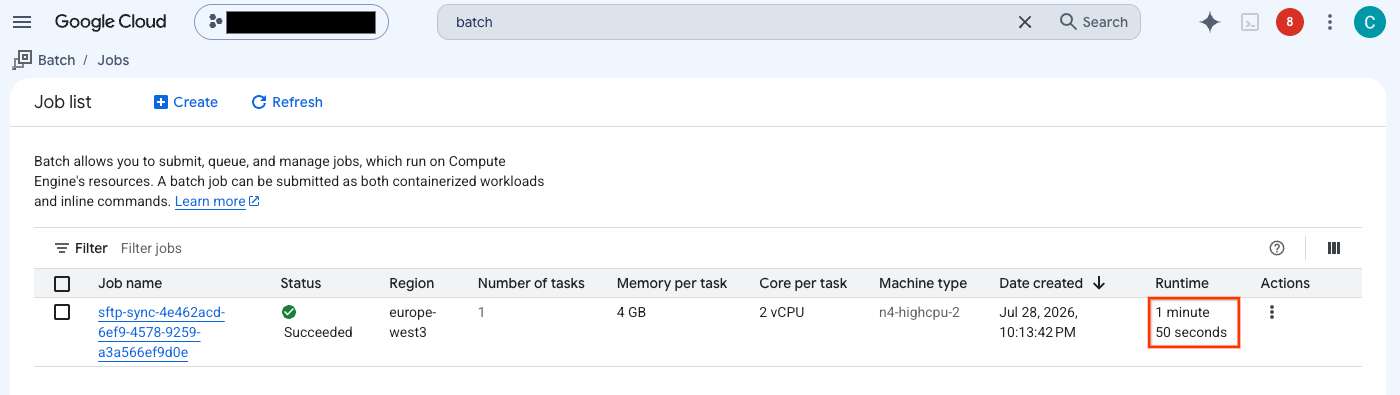
Click details, and then Logs, and view each file copied by rclone:
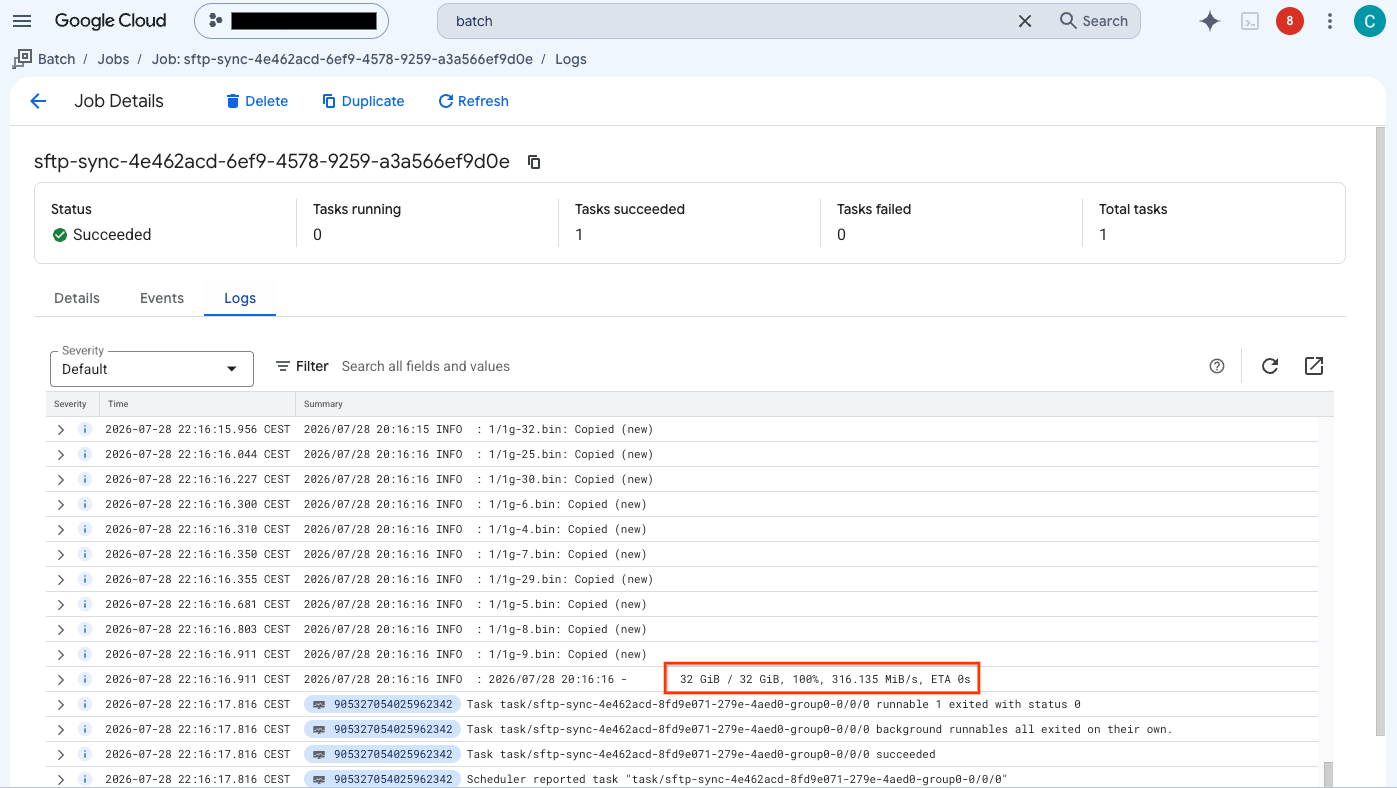
Once rclone finishes copying the files, Batch terminates and destroys the Compute Engine VM immediately.
(7) Scheduling recurring transfers with Cloud Scheduler
To execute on a recurring schedule every two hours, configure Cloud Scheduler to trigger your workflow endpoint:
# Create the scheduler job
gcloud scheduler jobs create http sftp-to-gcs-batch-schedule \
    --location=${REGION} \
    --schedule="0 */2 * * *" \
    --uri="https://workflowexecutions.googleapis.com/v1/projects/${PROJECT_ID}/locations/${REGION}/workflows/${WORKFLOW_NAME}/executions" \
    --http-method=POST \
    --oauth-service-account-email=${BATCH_SCHEDULER_SA_EMAIL} \
    --oauth-token-scope="https://www.googleapis.com/auth/cloud-platform"

# Run the schedule once manually to verify it works
gcloud scheduler jobs run sftp-to-gcs-batch-schedule \
    --location=${REGION}
If you check Cloud Scheduler you should see a successful invocation, and if you view the Batch job page you can view the details of the rclone transfer job execution.
🥳 Congrats, you have now successfully used rclone to transfer data from a remote SFTP server into GCS without a server to manage, and scheduled it to update every two hours!
Next step / alternative: Try the HTTP backend
If you don’t have an external SFTP server but want to give rclone with managed compute a try, here’s a fun way to do it using the HTTP storage backend and a public dataset from the German weather service. They maintain webcams at several stations and update still images every 10 minutes, retaining the last 48 hours of images. Let’s archive them into GCS!
Append the following storage backend to your rclone.conf file (tip: get your current file with gcloud secrets versions access latest --secret=rclone-config --out-file=rclone.conf):
cat <<EOF >> rclone.conf

[dwd-de]
type = http
url = https://opendata.dwd.de
EOF
Create a new secret version:
gcloud secrets versions add rclone-config \
    --data-file="rclone.conf"
Set the path to use in your bucket and a name for this HTTP job:
# Set destination paths (omit leading slashes unless required by your setup)
DESTINATION_PATH="destination/path/here"
JOB_NAME="http-webcam-to-gcs"
Deploy a Cloud Run job:
gcloud run jobs create ${JOB_NAME} \
    --image="docker.io/rclone/rclone:latest" \
    --region=${REGION} \
    --service-account=${RUN_SA_EMAIL} \
    --cpu=2 \
    --memory=1Gi \
    --tasks=1 \
    --set-secrets="/secrets/config/rclone.conf=rclone-config:latest" \
    --args="copy,dwd-de:weather/webcam,gcs-bucket:${BUCKET_NAME}/${DESTINATION_PATH},--config=/secrets/config/rclone.conf,--include=*_full.jpg,--verbose,--stats=60s,--stats-one-line-date,--stats-file-name-length=0,--transfers=8,--checkers=8,--log-file=/dev/stdout"
Trigger an immediate execution:
gcloud run jobs execute ${JOB_NAME} \
    --region=${REGION}
On each execution it will list files on the source and destination, and then download any files missing from the destination. If you plan to run this for the long term you will want to manage the destination directory structure to avoid unnecessary time and cost for large LIST operations as these images accumulate.
But for now, enjoy views of the Port of Hamburg and the Elbe River:

Conclusion
Transferring into and out of Google Cloud Storage using rclone has never been easier! By using managed services like Cloud Run jobs, Batch, Workflow, Cloud Scheduler, and Secret Manager, you eliminate the hassle of running and paying for transfer VMs, while retaining the complete versatility of rclone.
As always, comments are welcome!