PiBakery to the rescue!
Together with my colleague Clemens Siebler we were preparing for an upcoming Hacker’s night night we’ll run at NetApp Insight Berlin. We have a challenge for participants that includes a few different bits of tech, including some Raspberry Pis. I volunteered to handle the Pis; hardware and software is my task. Prototyping on one Pi I got everything working as wanted. But for the event, one Pi isn’t enough.
Okay, 30 Raspberry PIs. Headless. On Wifi.
Big sigh, what next? Ideally, I’d like the out-of-boxing experience to be for the hackers, but we can’t have them transferring (and waiting for) hundreds of MBs each over conference WIFI.
Enter scene: PiBakery
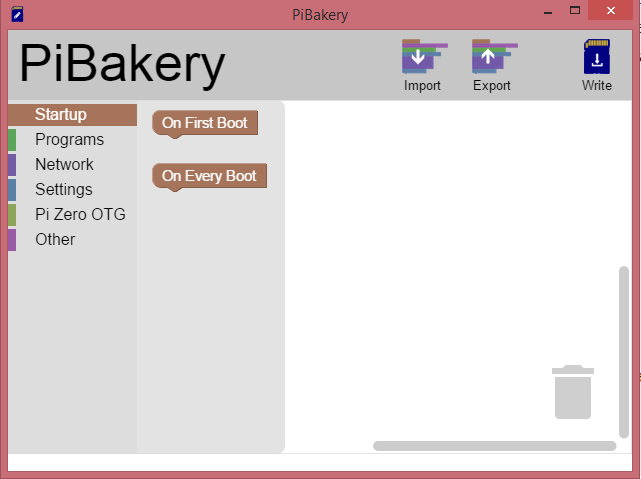
PiBakery is a cool little program that allows you to configure your Raspbian image from your PC (cross-platform - it’s written in Electron/node.js) and then flash it onto the sd card. It has a drag and drop interface and you pick ‘on first boot’ and ‘on every boot’ as your start-up option and then chain actions below like setting WIFI details, passwords, installing packages, etc. You can export/import and the file is XML so you can tweak it raw too if you want.
For me just raspbian + wifi + fixed IP would be enough but after clicking everywhere I learned there is no “set fixed IP” function! Oh drat! I could however pull a file from the network or run any program. Well, lets check how you set a fixed IP on Raspbian Jessie. It seems the file /etc/dhcpcd.conf just needs a few lines appended to it with the details and Bob’s your uncle. Appending a few lines, hmmm, I could do that by simply chaining a few “run command” functions like echo "something important" >> /etc/dhcpdc.conf. A quick test showed it worked!
For anyone looking to set a fixed IP with PiBakery just do this:
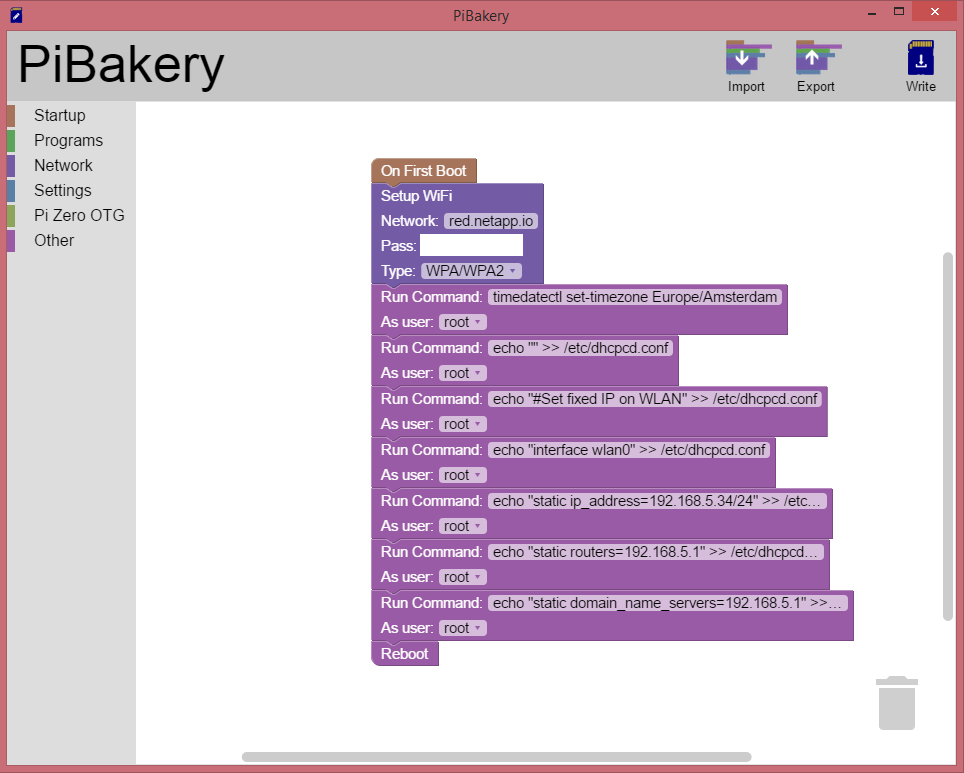
Actual commands:
echo "" >> /etc/dhcpcd.conf
echo "#Set fixed IP on WLAN" >> /etc/dhcpcd.conf
echo "interface wlan0" >> /etc/dhcpcd.conf
echo "static ip_address=192.168.6.21/24" >> /etc/dhcpcd.conf
echo "static routers=192.168.6.1" >> /etc/dhcpcd.conf
echo "static domain_name_servers=192.168.6.1" >> /etc/dhcpcd.conf
I also tried to restart networking but couldn’t get that to work, so just added a reboot step which of course did.
To load all 30x Pis I just had swap the physical sd card, update the ip address, click Write, wait 2-3 min, and repeat. And when the participants assemble their Pi and power it up it will join the network with a fixed IP to let the more interesting hacking begin :-)